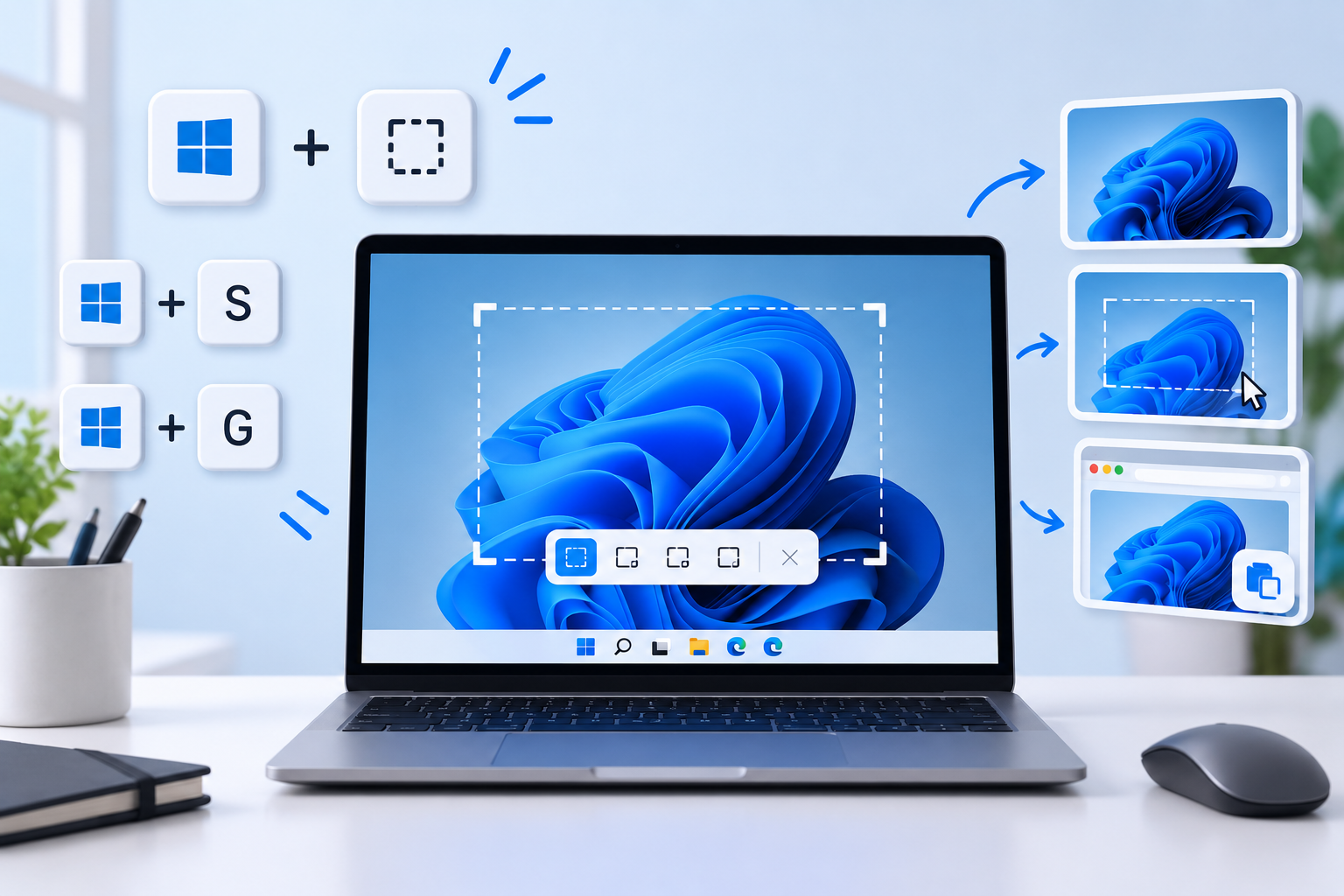
How to Take a Screenshot on Windows 11: 6 Easy Methods
Need to save something that's currently visible on your Windows 11 screen?
Whether you want to capture an error message, save an important part of a webpage, share a conversation, or simply keep a copy of something on your screen, taking a screenshot is one of the easiest things you can do on a Windows PC.
The good news is that Windows 11 has several built-in ways to take screenshots, so you don't necessarily need to install a third-party screenshot app.
You can capture:
- The entire screen
- A specific part of the screen
- A particular window
- An active application
- A screenshot that automatically saves as a file
- A screenshot that you can immediately edit and share
In this guide, we'll explain 6 easy ways to take a screenshot on Windows 11, including the keyboard shortcuts you should remember.
Quick Answer: What Is the Easiest Way to Screenshot on Windows 11?
For most people, the easiest method is:
Press Windows + Shift + S
Your screen will dim and the Snipping Tool capture interface will appear. You can then select the area you want to capture.
The screenshot is copied to your clipboard, and you can open the notification to edit or save it. Microsoft officially recommends Snipping Tool for capturing part or all of your screen.
1. Take a Screenshot Using Windows + Shift + S
This is probably the most useful screenshot shortcut in Windows 11.
How to do it
Press:
Windows + Shift + S
Your screen will become slightly darker and a screenshot toolbar will appear at the top.
Depending on the available capture options, you can select:
- Rectangular snip
- Freeform snip
- Window snip
- Full-screen snip
Step 1: Press Windows + Shift + S
Hold the Windows key, Shift key, and S key together.
Step 2: Select the screenshot mode
For most screenshots, choose Rectangular Snip.
Step 3: Select the area
Click and drag your mouse around the area you want to capture.
Step 4: Open the screenshot
Windows copies the capture to your clipboard and shows a notification.
Click the notification to open the screenshot in Snipping Tool.
From there, you can:
- Crop it
- Draw on it
- Highlight something
- Copy it
- Save it
- Share it
Microsoft confirms that Windows + Shift + S opens the screenshot selection interface in Windows 11.
When should you use this method?
Use it when you don't want to capture the entire screen.
For example:
You have an error message in the middle of your screen and only want to send that error to someone.
This method is much faster than taking a full-screen screenshot and cropping it later.
2. Take a Full-Screen Screenshot Using Windows + Print Screen
If you want to capture your entire screen and automatically save it as an image, use:
Windows + PrtScn
How it works
Press:
Windows + PrtScn
Windows captures the entire screen and saves the screenshot as a file.
According to Microsoft, the screenshot is saved inside the Screenshots subfolder of your Pictures folder.
Where is the screenshot saved?
Open:
File Explorer → Pictures → Screenshots
You should find your captured screenshots there.
When should you use this method?
This is useful when you want to take several full-screen screenshots quickly without manually saving every capture.
For example, you might use it while:
- Creating a tutorial
- Documenting a software problem
- Saving multiple pages
- Recording steps for a project
3. Take a Screenshot Using the Print Screen Key
Your keyboard may have a button labelled:
PrtScn
It can also appear as:
- PrtSc
- PrtScn
- Print Screen
- PrntScrn
Pressing the Print Screen key captures the screen and copies the image to your clipboard. Microsoft documents this as one of the standard screenshot methods in Windows.
How to save it
Press:
PrtScn
Then open an application such as:
- Paint
- Word
- PowerPoint
- WhatsApp Web
- An image editor
Press:
Ctrl + V
Your screenshot will be pasted.
You can then save it as an image.
Important difference
Unlike Windows + PrtScn, pressing just PrtScn doesn't necessarily mean you'll immediately get a saved image file. It is useful when you want to copy the screenshot and paste it somewhere else.
4. Screenshot Only the Active Window
Suppose you have several applications open but only want to capture the window you're currently using.
You don't need to capture the entire desktop.
Use:
Alt + PrtScn
How to use it
- Open the window you want to capture.
- Click the window to make sure it's active.
- Press Alt + PrtScn.
- Open Paint, Word or another application.
- Press Ctrl + V.
- Save the image.
Microsoft lists Alt + PrtScn as the shortcut for capturing the active window and copying it to the clipboard.
Example
Imagine you have:
- Chrome
- File Explorer
- Settings
all open.
If Chrome is the active window and you press Alt + PrtScn, you can capture the active Chrome window instead of the entire desktop.
5. Use the Snipping Tool
If you take screenshots frequently, Snipping Tool is one of the best built-in options in Windows 11.
You can open it by searching for:
Snipping Tool
in the Windows Start/Search menu.
You can also press:
Windows + Shift + S
to quickly start a screenshot capture.
What Can You Capture With Snipping Tool?
Snipping Tool supports several capture modes.
Rectangular Snip
Select a rectangular section of your screen.
This is useful for capturing:
- Website sections
- Error messages
- Images
- Tables
- Specific UI elements
Freeform Snip
Draw your own shape around the area you want to capture.
This is useful when the object you're trying to capture doesn't fit neatly inside a rectangle.
Window Snip
Select a particular application window.
For example:
Chrome → select Chrome window → screenshot
This avoids capturing other windows behind it.
Full-Screen Snip
Capture the entire screen.
This is useful when you want everything visible on your monitor.
Microsoft's current Snipping Tool documentation lists rectangular, freeform, window and full-screen capture modes.
6. Take a Screenshot of a Menu or Pop-Up
Sometimes you need to capture a menu that disappears when you click somewhere else.
This can be annoying because the moment you open another tool, the menu may disappear.
Snipping Tool has a useful approach for this.
Try this:
- Open the menu you want to capture.
- Open Snipping Tool.
- Choose the appropriate snipping mode.
- Capture the menu.
Microsoft also documents a method using Ctrl + PrtScn after opening the menu, which can help capture the screen while the menu is visible.
Where Are Screenshots Saved in Windows 11?
This is one of the most common questions beginners have.
If you use:
Windows + PrtScn
your screenshot is saved in:
Pictures → Screenshots
You can find it using File Explorer:
File Explorer → Pictures → Screenshots
Microsoft confirms that Windows + PrtScn saves the full-screen screenshot in the Screenshots subfolder of Pictures.
What If You Can't Find Your Screenshot?
Don't panic.
First check:
File Explorer → Pictures → Screenshots
If you used:
PrtScn
or
Alt + PrtScn
the screenshot may only be in your clipboard.
Try:
Ctrl + V
inside Paint or another application.
If the image appears, you can save it manually.
How to Edit a Screenshot in Windows 11
After taking a screenshot with Snipping Tool, you can make basic edits before saving it.
You can:
- Crop the image
- Draw on it
- Highlight important areas
- Add shapes
- Erase annotations
- Copy the image
- Save the image
- Share it
Microsoft also lists text actions/OCR capabilities in Snipping Tool for supported current Windows 11 versions, allowing users to extract text from screenshots.
How to Copy a Screenshot Without Saving It
Sometimes you don't need an image file.
You just want to send the screenshot somewhere.
In that case:
Step 1
Press:
Windows + Shift + S
Step 2
Select the area.
Step 3
Open the app where you want to paste it.
For example:
- WhatsApp Web
- Gmail
- Microsoft Word
- Discord
- Telegram
- Photoshop
Step 4
Press:
Ctrl + V
That's it.
This is often the fastest way to send a screenshot.
Windows 11 Screenshot Shortcuts Cheat Sheet
Here's a quick reference you can save.
| Shortcut | What it does |
|---|---|
| Windows + Shift + S | Select an area to screenshot |
| Windows + PrtScn | Capture full screen and save it |
| PrtScn | Capture/copy screen |
| Alt + PrtScn | Capture active window |
| Ctrl + PrtScn | Useful for capturing menus with Snipping Tool |
| Windows + Shift + R | Record a selected area as a video with Snipping Tool |
Microsoft's current documentation lists these screenshot and screen-recording shortcuts for Windows 11.
Which Screenshot Method Should You Use?
If you're confused about which method to choose, use this simple rule:
Want to capture a specific area?
Windows + Shift + S
Want to capture the entire screen and save it automatically?
Windows + PrtScn
Want to capture only the current window?
Alt + PrtScn
Want to copy a screenshot and paste it somewhere?
PrtScn
Want to edit, annotate or crop screenshots?
Snipping Tool
Windows 11 Screenshot Not Working? Try These Fixes
Sometimes the screenshot shortcut may not work as expected.
Here are a few things you can try.
1. Try Windows + Shift + S
This is one of the simplest ways to check whether Snipping Tool is working.
2. Open Snipping Tool Manually
Press the Windows key and search: Snipping Tool
Open the application and try capturing the screen from there.
3. Check Your Keyboard
Some laptops use special function keys.
Your Print Screen key may be labelled differently or may require the Fn key depending on your keyboard hardware.
Microsoft notes that some devices without a dedicated PrtScn key may use an alternate combination such as Fn + Windows + Spacebar.
4. Update Windows and Snipping Tool
If Snipping Tool is behaving unexpectedly, make sure Windows and your installed apps are up to date.
5. Restart Your PC
It sounds basic, but restarting Windows can resolve temporary problems with keyboard shortcuts and system applications.
Can You Take a Screenshot Without a Keyboard?
Yes. You can open:
Start → Search → Snipping Tool
Then use the application's capture controls.
This is particularly useful if:
- Your keyboard isn't working
- The Print Screen key isn't available
- You're using a touchscreen device
- You simply prefer using the mouse
Bonus: Windows 11 Can Also Record Your Screen
Taking screenshots isn't the only thing Snipping Tool can do. On supported Windows 11 versions, Snipping Tool also provides screen recording.
You can use:
Windows + Shift + R
to select an area of the screen and record it as a video. Microsoft currently documents this shortcut for Snipping Tool screen recording.
This can be useful when you need to demonstrate:
- A software problem
- A website bug
- A Windows setting
- A tutorial
- A process that is difficult to explain with a single screenshot