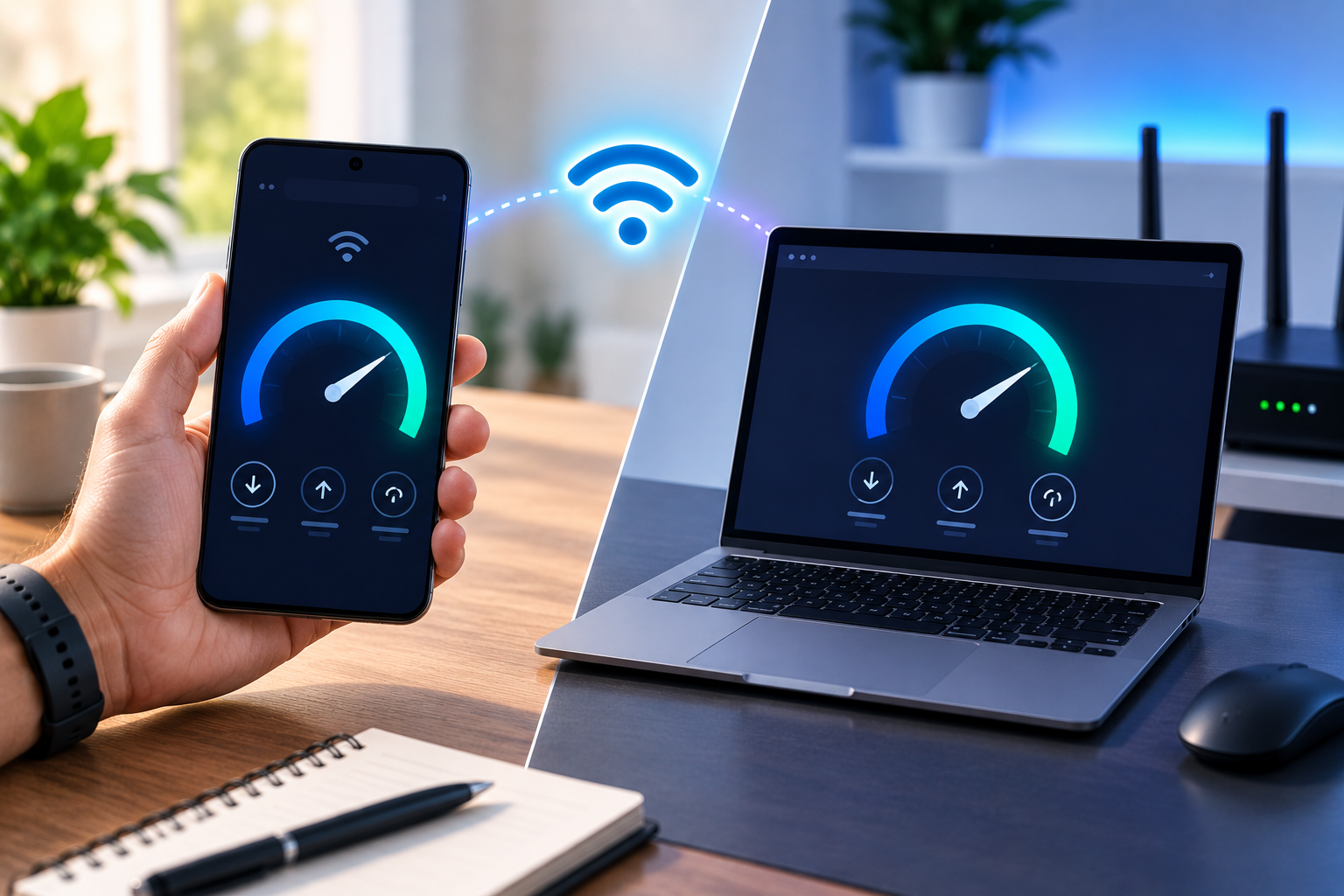
How to Check Your Internet Speed on Phone and PC: Complete Guide
Is your internet feeling slow?
Maybe YouTube videos are buffering, websites are taking too long to load, online games are lagging, or files are downloading much slower than expected.
Before blaming your Wi-Fi provider, there's one simple thing you should do:
Run an internet speed test.
An internet speed test can tell you how quickly data is moving between your device and a test server. The results typically include download speed, upload speed and ping/latency.
But there's a catch.
A speed test result doesn't automatically tell you whether your internet is "good" or "bad." Your result can change depending on:
- Wi-Fi signal strength
- Number of connected devices
- Distance from the router
- Network congestion
- VPN usage
- Your internet plan
- Server location
- Time of day
- Whether you're using Wi-Fi or Ethernet
In this guide, we'll show you how to check internet speed on your phone and PC, explain what every number means, and show you how to get more reliable results.
Quick Answer: How Do I Check My Internet Speed?
The easiest way is to use a reputable online speed-test service.
On your phone or computer:
- Open a browser.
- Search for an internet speed test or open a trusted speed-test service.
- Start the test.
- Wait for the test to finish.
- Check your download speed, upload speed and ping.
You don't necessarily need to install an app.
For the most accurate picture of your home internet connection, run multiple tests under similar conditions and compare the results.
What Is Internet Speed?
Internet speed refers to how quickly data can be transferred between your device and the internet.
It's commonly measured in:
Mbps
which means:
Megabits per second
For example:
100 Mbps
means the connection is capable of transferring data at a rate of up to 100 megabits per second under the relevant conditions.
Mbps vs MB/s: What's the Difference?
This confuses a lot of people.
Mbps
Means:
Megabits per second
MB/s
Means:
Megabytes per second
They aren't the same thing.
There are 8 bits in 1 byte.
So, as a rough mathematical conversion:
100 Mbps ÷ 8 = 12.5 MB/s
That doesn't mean every download will actually reach 12.5 MB/s because real-world transfers are affected by overhead, server limitations, Wi-Fi conditions and other factors.
What Does Download Speed Mean?
Download speed tells you how quickly your device can receive data from the internet.
It's especially important for:
- Watching videos
- Downloading apps
- Downloading games
- Opening websites
- Streaming music
- Downloading files
- Video conferencing
For most everyday users, download speed is the number they'll notice most often.
What Does Upload Speed Mean?
Upload speed tells you how quickly your device can send data to the internet.
It's important for:
- Uploading videos
- Sending large files
- Cloud backups
- Video calls
- Live streaming
- Uploading photos
- Sharing files
For example, if you're uploading a large video to YouTube, upload speed becomes particularly important.
What Is Ping or Latency?
Ping, commonly reported in milliseconds (ms), relates to how long it takes for data to travel between your device and the test server and back.
Lower latency is generally better for activities that need quick responses.
It's particularly important for:
- Online gaming
- Video calls
- Remote desktop
- Real-time applications
A connection can have very high download speed and still feel frustrating in an online game if latency is high or unstable.
What Is Jitter?
Some speed tests also show:
Jitter
Jitter refers to variation in network latency over time.
A stable connection generally has more consistent latency.
High or unstable jitter can be noticeable during:
- Voice calls
- Video calls
- Online gaming
- Other real-time activities
How to Check Internet Speed on Your Phone
You can test your internet speed directly from your Android phone or iPhone.
You don't need a computer.
Step 1: Connect to the Network You Want to Test
First decide whether you're testing:
Wi-Fi
or:
Mobile data
This is important because the results represent different connections.
If you're testing your home Wi-Fi, make sure your phone is connected to your home Wi-Fi network.
Step 2: Close Apps Using the Internet
Before testing, close or pause apps that may be consuming significant bandwidth.
For example:
- Cloud backups
- Large downloads
- Video streaming
- App updates
- File uploads
This helps reduce interference with the test.
Step 3: Open Your Browser
Open Chrome, Safari or another browser.
Search for:
Internet speed test
Then choose a reputable speed-test service.
Step 4: Start the Test
Tap the test/start button.
The test will measure your connection.
You may see numbers for:
- Download
- Upload
- Ping
- Jitter
Wait until the test finishes.
Step 5: Record the Result
For example, you might get:
Download: 92 Mbps
Upload: 18 Mbps
Ping: 24 ms
Don't immediately assume these numbers are good or bad.
The next step is understanding what they mean for your usage.
How to Check Internet Speed on a Windows PC
The process is almost identical on a laptop or desktop.
Step 1: Connect Your PC to the Internet
Connect using either:
- Wi-Fi
- Ethernet
If possible, test both.
Step 2: Open a Browser
Open:
- Chrome
- Edge
- Firefox
- Another trusted browser
Step 3: Run a Speed Test
Search for:
internet speed test
and choose a reputable service.
Start the test.
Step 4: Wait for the Results
Once the test finishes, note:
Download + Upload + Ping
You can record the results so you can compare them later.
Wi-Fi vs Ethernet: Which Should You Test?
If your laptop or desktop supports Ethernet, testing with a wired connection can help determine whether your Wi-Fi is the problem.
For example:
Test 1 — Wi-Fi
65 Mbps
Test 2 — Ethernet
95 Mbps
This suggests the internet connection itself may be capable of higher speeds and that the wireless connection could be contributing to the lower result.
It doesn't prove that Wi-Fi is the only problem, but it's a useful diagnostic comparison.
How to Get a More Accurate Internet Speed Test
One speed test isn't always enough.
Your result can fluctuate.
For better results, follow these steps.
1. Stop Downloads
Pause large downloads before testing.
2. Stop Streaming
If someone is watching a 4K video while you're testing, your result may be affected.
3. Disconnect Unnecessary Devices
Temporarily disconnect or stop heavy internet usage on devices such as:
- Smart TVs
- Gaming consoles
- Other computers
- Tablets
- Phones
You don't necessarily have to disconnect every device. Just make sure they aren't consuming significant bandwidth.
4. Move Closer to the Router
If you're testing Wi-Fi, move closer to the router.
This helps determine whether distance or signal strength is affecting performance.
5. Turn Off VPN
If you're using a VPN, temporarily disconnect it for a basic connection test.
VPN routing can affect speed and latency.
6. Run Multiple Tests
Don't judge your connection based on one result.
Try:
Test 1 → Test 2 → Test 3
If all three are similar, you have a more useful indication of your current connection performance.
Why Does My Internet Speed Change?
It's completely normal for speed-test results to vary.
For example:
9:00 AM → 94 Mbps
2:00 PM → 87 Mbps
9:00 PM → 62 Mbps
Several factors can contribute to changes.
Network Congestion
More users may be online during busy periods.
Wi-Fi Interference
Nearby wireless networks and other devices can affect Wi-Fi performance.
Distance from Router
The farther you are from your router, the weaker the wireless signal may become.
Walls and floors can also affect Wi-Fi.
Other Devices
Someone downloading a large game can consume significant bandwidth.
ISP Network Conditions
Your internet service provider's network can also affect performance.
What Is a Good Internet Speed?
There's no single speed that's "good" for everyone.
It depends on what you're doing and how many people are using the connection.
Here's a simple practical guide:
| Download Speed | Suitable For |
|---|---|
| Under 10 Mbps | Basic browsing, messaging |
| 10–25 Mbps | Browsing, HD streaming for a small household |
| 25–50 Mbps | Streaming and normal everyday use |
| 50–100 Mbps | Multiple users, HD/4K streaming, downloads |
| 100–300 Mbps | Heavy household usage, gaming, large downloads |
| 300+ Mbps | Large households and demanding usage |
These are general guidelines, not hard requirements.
Streaming quality, device count, server performance and network stability also matter.
Is 100 Mbps Fast?
For many households, 100 Mbps is plenty for normal everyday internet use.
It can support activities such as:
- Web browsing
- Video calls
- Streaming
- Online gaming
- Multiple connected devices
However, the experience also depends on upload speed, latency, Wi-Fi quality and how many people are using the connection simultaneously.
Is 50 Mbps Enough?
For many individuals and small households, 50 Mbps can be sufficient for everyday activities.
You can use it for:
- Browsing
- Social media
- HD video streaming
- Video calls
- Online classes
- Casual gaming
If multiple people are simultaneously downloading large files or streaming high-resolution video, you may benefit from a faster plan.
Is 20 Mbps Enough?
It can be enough for basic use, especially for one or a few users.
But if several devices are simultaneously streaming, gaming, downloading and attending video calls, 20 Mbps may feel limited.
Is High Download Speed Enough for Gaming?
Not necessarily.
Online gaming often doesn't require extremely high download speeds.
What can matter more is:
- Ping
- Jitter
- Packet loss
- Connection stability
For competitive gaming, a stable low-latency connection can be more important than simply having the highest possible Mbps number.
Why Is My Speed Test Good but YouTube Is Slow?
This is a very common question.
A speed test may show:
100 Mbps
while a particular website or video still loads slowly.
Why?
Because the speed test and the website may be using different servers and network paths.
Other possible causes include:
- Website/server problems
- Wi-Fi issues
- Browser problems
- DNS issues
- Device limitations
- VPN
- Background downloads
A speed test tells you about the connection to its test server. It doesn't guarantee that every website will deliver content at exactly the same speed.
Why Is My Phone Internet Faster Than My Laptop?
This can happen for several reasons.
Your phone and laptop may have different:
- Wi-Fi hardware
- Antenna designs
- Supported Wi-Fi standards
- Signal strength
- Drivers
- Network settings
The devices may also be connected to different Wi-Fi bands.
For example, one device might be connected to a stronger/faster wireless connection while another has a weaker signal.
Why Is My Wi-Fi Slow but Ethernet Fast?
If Ethernet is significantly faster than Wi-Fi, the issue may be related to your wireless connection rather than the underlying internet service.
Possible causes include:
- Router location
- Distance
- Walls
- Interference
- Wi-Fi band
- Router configuration
- Device Wi-Fi hardware
Try moving closer to the router and testing again.
How to Check Wi-Fi Speed vs Internet Speed
These are related but not identical.
Internet Speed
How quickly your network can communicate with the wider internet.
Wi-Fi Speed
How quickly your device communicates wirelessly with your router.
Your Wi-Fi link can be weak even when your internet plan is fast.
For example:
Internet connection: 200 Mbps
Actual Wi-Fi test: 80 Mbps
In this case, the Wi-Fi environment or device could be limiting the connection.
What Should You Do If Your Speed Is Lower Than Your Plan?
Suppose your plan is:
100 Mbps
but your speed test consistently shows:
35 Mbps
Don't immediately assume your ISP is at fault.
Try troubleshooting first.
Step 1
Restart your router.
Step 2
Move closer to the router.
Step 3
Run another test.
Step 4
Test another device.
Step 5
Try Ethernet if available.
Step 6
Check whether other devices are consuming bandwidth.
Step 7
Run tests at different times.
If multiple devices consistently show significantly lower speeds under good testing conditions, contact your internet service provider and provide the test results.
Why You Should Test More Than One Device
Testing one device tells you about that particular device's connection.
Testing multiple devices gives you a better picture.
For example:
| Device | Download |
|---|---|
| Phone | 95 Mbps |
| Laptop | 42 Mbps |
| Desktop via Ethernet | 98 Mbps |
This suggests the internet connection itself may be performing reasonably well while the laptop's wireless connection may need investigation.
Should You Test Internet Speed on Mobile Data?
Yes.
If your mobile internet feels slow, you can run a speed test while connected to mobile data instead of Wi-Fi.
Just remember:
A mobile-data speed test uses your cellular connection and may consume some data.
If you have a limited data plan, avoid running excessive tests.
How to Test Your Internet Speed Properly
For a simple home diagnosis, use this process:
Test 1
Phone on Wi-Fi
Test 2
Laptop on Wi-Fi
Test 3
Laptop on Ethernet, if available
Test 4
Repeat the test at a different time
Then compare the results.
This gives you much more useful information than running a single test.
Internet Speed Test Checklist
Before pressing the test button:
☑ Pause large downloads
☑ Stop streaming
☑ Disconnect or pause heavy-use devices
☑ Turn off VPN temporarily
☑ Make sure you're testing the intended network
☑ Stay reasonably close to the router for a Wi-Fi test
☑ Run multiple tests
☑ Test more than one device if possible
☑ Record your results
Final Thoughts
Checking your internet speed is one of the easiest ways to troubleshoot a slow connection.
But don't focus only on the biggest number.
A useful speed test should help you understand:
Download → How quickly you receive data
Upload → How quickly you send data
Ping/Latency → How quickly the connection responds
Jitter → How consistent that response is
If your results are lower than expected, don't immediately upgrade your internet plan.
First:
Test → Compare → Troubleshoot → Test again
Try another device, move closer to the router, test with Ethernet if possible, pause background downloads and compare results at different times.
This will help you determine whether the problem is your Wi-Fi, device, router, network conditions or internet service.