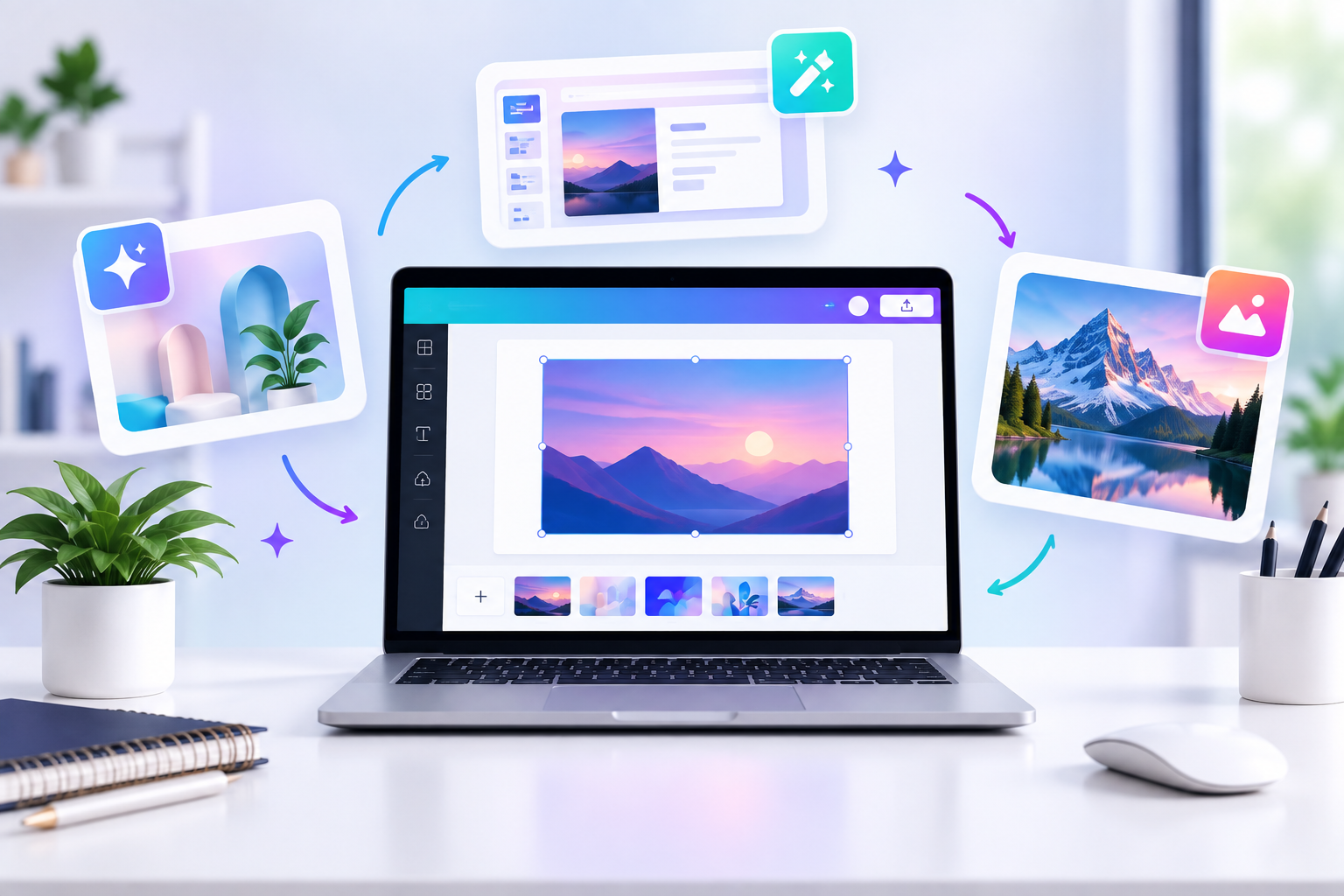
Canva AI: How to Create Designs, Presentations and Images With AI in 2026
You don't need to be a professional designer to create good-looking digital content anymore.
That's one of the biggest changes AI has brought to design.
Canva has been moving in this direction for years, and its AI ecosystem has become significantly more powerful.
Canva's current AI direction includes conversational creation, editable AI-generated designs, AI-powered elements and other creative workflows.
So what can you actually do with Canva AI?
Let's find out.
What Is Canva AI?
Canva AI is a collection of AI-powered creative features inside Canva.
Instead of manually creating everything from scratch, you can describe what you want and use AI to speed up parts of the design process.
For example:
Create a modern Instagram post for a technology website about the 5 best AI tools for students.
The idea is simple:
Your idea → AI-assisted creation → Edit → Publish
What Can Canva AI Do?
Depending on the current Canva features available to your account, AI can assist with:
- design creation
- writing
- image generation
- image editing
- layout creation
- presentations
- resizing
- translation
- branding
- content generation
Canva's Magic Studio has included tools such as Magic Design, Magic Write, Magic Switch, Magic Grab and Magic Expand.
1. Create Designs From a Prompt
One of the biggest advantages is reducing the blank-page problem.
Instead of starting with:
"What template should I use?"
you can start with:
"What am I trying to communicate?"
Canva's newer AI tools are designed around this idea.
Canva says its newer AI experience can create layered, editable designs from a prompt rather than simply producing a flat image.
That is important because editable elements give you more control.
2. Create Social Media Content
Suppose you run a technology website.
You could create a content brief like:
Instagram carousel
Topic: 5 Free AI Tools for Students
Audience: Indian college students
Style: Modern technology
Slides: 7
CTA: Read the full guide on Tech Help India
Then use Canva's AI-assisted workflow to accelerate the design process.
After that, manually check:
- spelling
- alignment
- fonts
- facts
- branding
- image quality
3. Create Presentations
Students and professionals can use Canva AI to speed up presentation creation.
Instead of designing every slide manually:
Topic → Outline → Slides → Visuals → Editing
Canva's AI tools can help accelerate this workflow.
But don't let AI decide everything.
Your presentation still needs:
- logical storytelling
- accurate information
- readable text
- appropriate visuals
4. Generate Images
Canva includes AI-powered media generation capabilities.
Its Magic Media tools have supported generating images and short videos from text prompts, while Canva's newer AI ecosystem continues expanding creative generation.
A useful prompt might be:
Create a realistic editorial-style image of a student studying on a laptop with AI tools, modern Indian college environment, natural lighting, horizontal composition.
The more details you provide, the more control you have.
5. Edit Images With AI
Canva's AI-powered editing tools can help manipulate images without requiring professional image-editing software.
For example, Magic Grab can separate a subject from an image so it can be repositioned or edited. Magic Expand can extend an image beyond its original borders.
This can be extremely useful when preparing:
- thumbnails
- social posts
- banners
- website graphics
- presentations
6. Write With AI
Canva also has AI writing functionality.
Magic Write can help generate drafts, summarize or expand text.
For example:
Write a short Instagram caption about a new smartphone launch. Make it exciting but informative.
You can then edit the result.
Again, treat AI writing as a starting point rather than the final answer.
7. Resize and Repurpose Content
Imagine you created:
One Instagram post
But now you need:
- Facebook version
- LinkedIn version
- Instagram Story
- presentation slide
- website banner
AI-assisted tools can help speed up this repurposing process.
Canva's Magic Switch was designed to transform designs into different formats and even translate content.
8. Canva AI for Bloggers
This is particularly relevant for Tech Help India.
A single blog post can become:
Blog
"10 Best AI Tools for Students"
↓
Instagram Carousel
"5 AI Tools Every Student Should Know"
↓
Instagram Story
"Which AI tool do you use?"
↓
Pinterest Graphic
↓
YouTube Thumbnail
↓
LinkedIn Post
Instead of creating every asset separately, AI-assisted workflows can help you repurpose your original content.
9. Canva AI for Small Businesses
Small businesses often don't have a dedicated design team.
Canva AI can help with:
- social media graphics
- promotional posts
- presentations
- flyers
- posters
- brand content
- marketing assets
Canva says its newer AI workflows can coordinate content creation across formats and maintain editable design elements.
10. Canva AI for YouTube Creators
Creators can use Canva for:
- thumbnails
- channel banners
- social posts
- video graphics
- presentation-style videos
- promotional materials
The biggest advantage isn't simply "AI generates an image."
It's:
AI + editing + templates + branding + publishing workflow
inside one environment.
How to Write Better Canva AI Prompts
Don't type:
"Make a tech poster."
Instead:
Create a premium technology poster about "5 AI Tools for Students". Use a clean modern layout, dark background, strong headline hierarchy, minimal icons, high contrast and enough whitespace. Format it for Instagram portrait.
You're giving Canva:
Topic + audience + style + layout + format
That's much better.
Canva AI vs Traditional Design
Traditional workflow:
Idea → Search template → Replace text → Find image → Edit → Resize → Export
AI-assisted workflow:
Idea → Prompt → Generate → Edit → Resize → Export
The second workflow can be significantly faster.
But AI doesn't remove the need for design judgment.
You still need to know:
- what looks professional
- what your audience wants
- what information matters
- what should be removed
- what needs correction
Is Canva AI Free?
Canva has different plans and feature availability can vary.
Some AI features may have usage limits or may be available only on certain plans.
Because Canva changes its feature availability over time, check the current Canva plan information before promising a specific AI feature as permanently free.
Should You Use Canva AI for Everything?
No.
AI-generated design can sometimes:
- look generic
- contain incorrect text
- create awkward layouts
- use irrelevant imagery
- produce inconsistent branding
Always review the final design.
Final Verdict
Canva AI is most useful when you don't want AI to completely replace your creative process.
Instead, it can remove repetitive work.
You still provide:
Idea + Direction + Judgment
AI helps with:
Generation + Editing + Speed
That combination is much more powerful than either one alone.